Book a time on someone's booking page
Open the booking link you were sent, pick a day and time, and confirm. You do not need an account.
Before you start
The booking link from the host.
Your name. The host may also require your email. Without an email, you get no confirmation email.
On a computer
Open the link. Pick a day shows the host's open days in a calendar. Select a day.
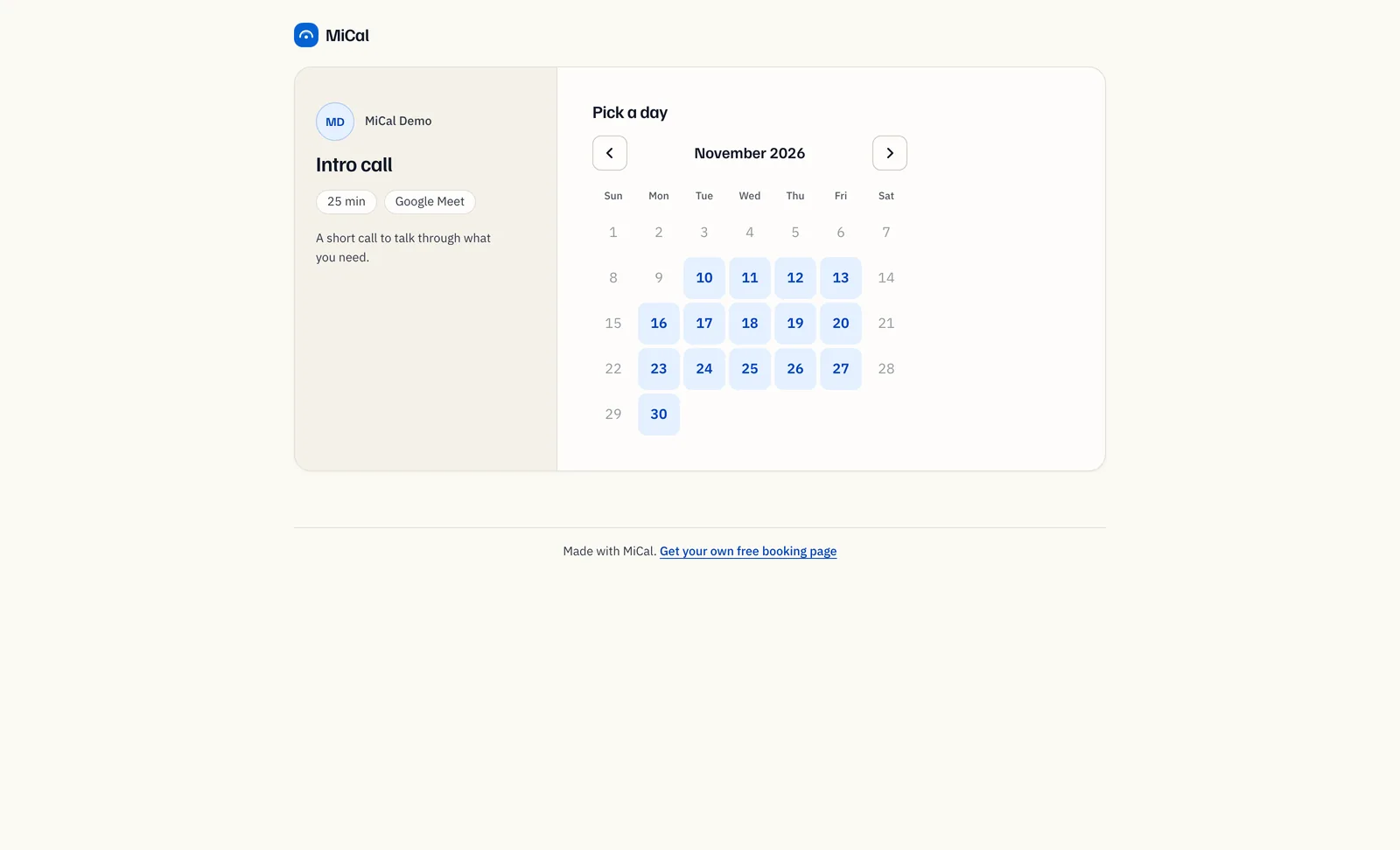
Under Pick a time, select a time. Times past or too soon to book are hidden. To choose another day, select Change day.
Under Your details, enter your Name. Add your Email and any Notes for the host.
Select Confirm booking. To pick a different time first, select Change time.
On a phone
Open the link. The page starts on Pick a day and time, with the first open day already chosen and its times below.
Swipe the row of days and tap a day. Only days with open times appear.
Tap a time. The times are in rows of three.
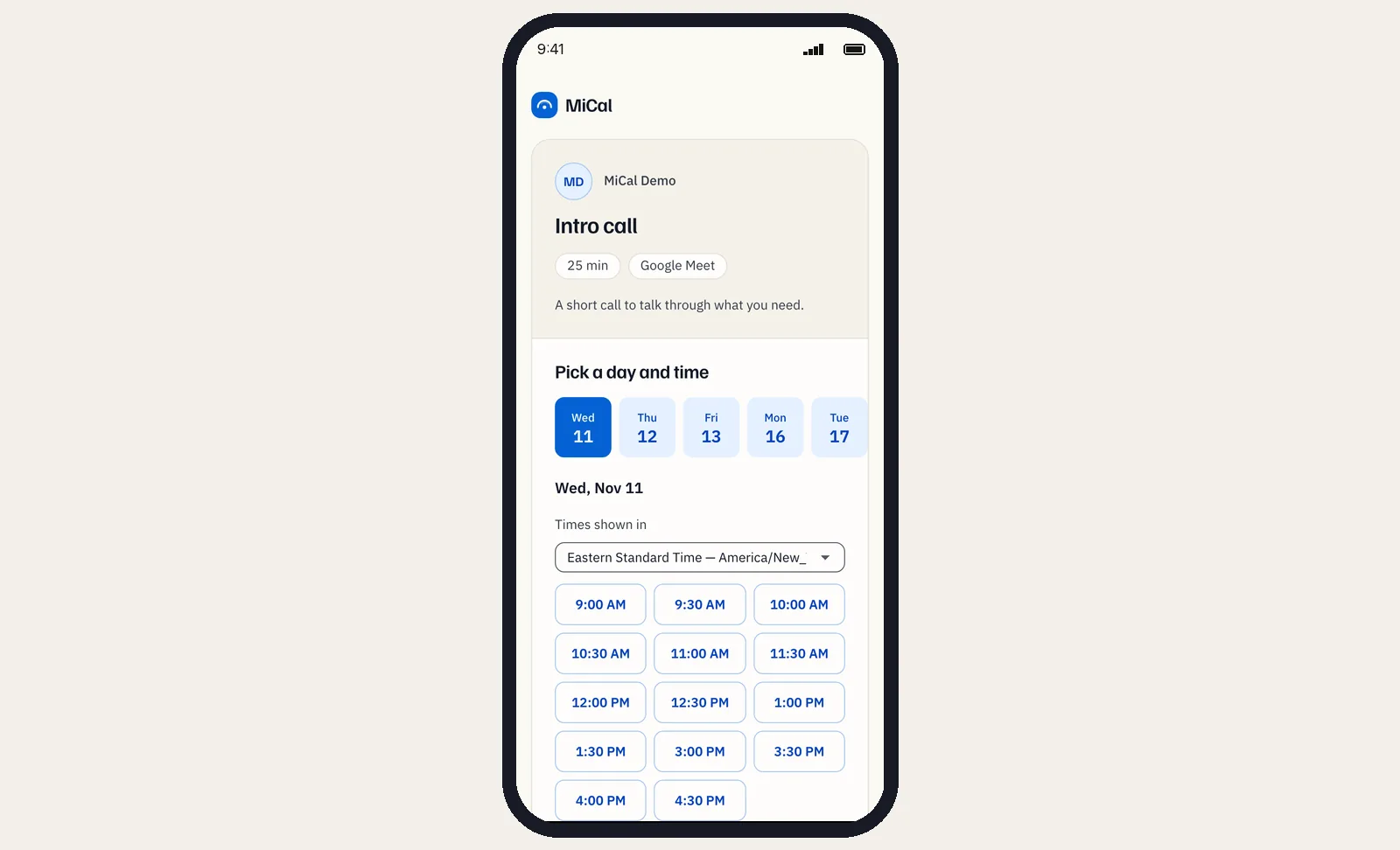
Enter your Name, Email, and Notes, then tap Confirm booking. Tap Change time to pick another slot.
See your own calendar on the page
You can book without an account. If you want your own busy times shown next to the host's open times, sign in.
At the top of the page, under See your own calendar on these times, select Sign in with Google or Sign in with Microsoft. This makes a free MiCal account. It is optional and costs nothing. Google or Microsoft shows a permission screen first, and the privacy policy covers your data.
You come back to the same booking page. A time that clashes with your calendar shows You're busy. A time that is clear shows Works for you too. You can still book either one.
If your calendar could not be read, the times show no label.
The host sees nothing about your calendar.
Choose your time zone
Times show in the time zone your browser detects. To change it, open Times shown in and choose your zone. Every time on the page updates to that zone.
If the host's calendar is in a different zone, a note under the list says so, for example "Host's calendar is in Eastern Time."
Your choice is remembered in that browser, so later bookings open in the same zone.
If you are traveling or on a VPN, the detected zone can be wrong. Set it by hand before you pick a time.
After you confirm
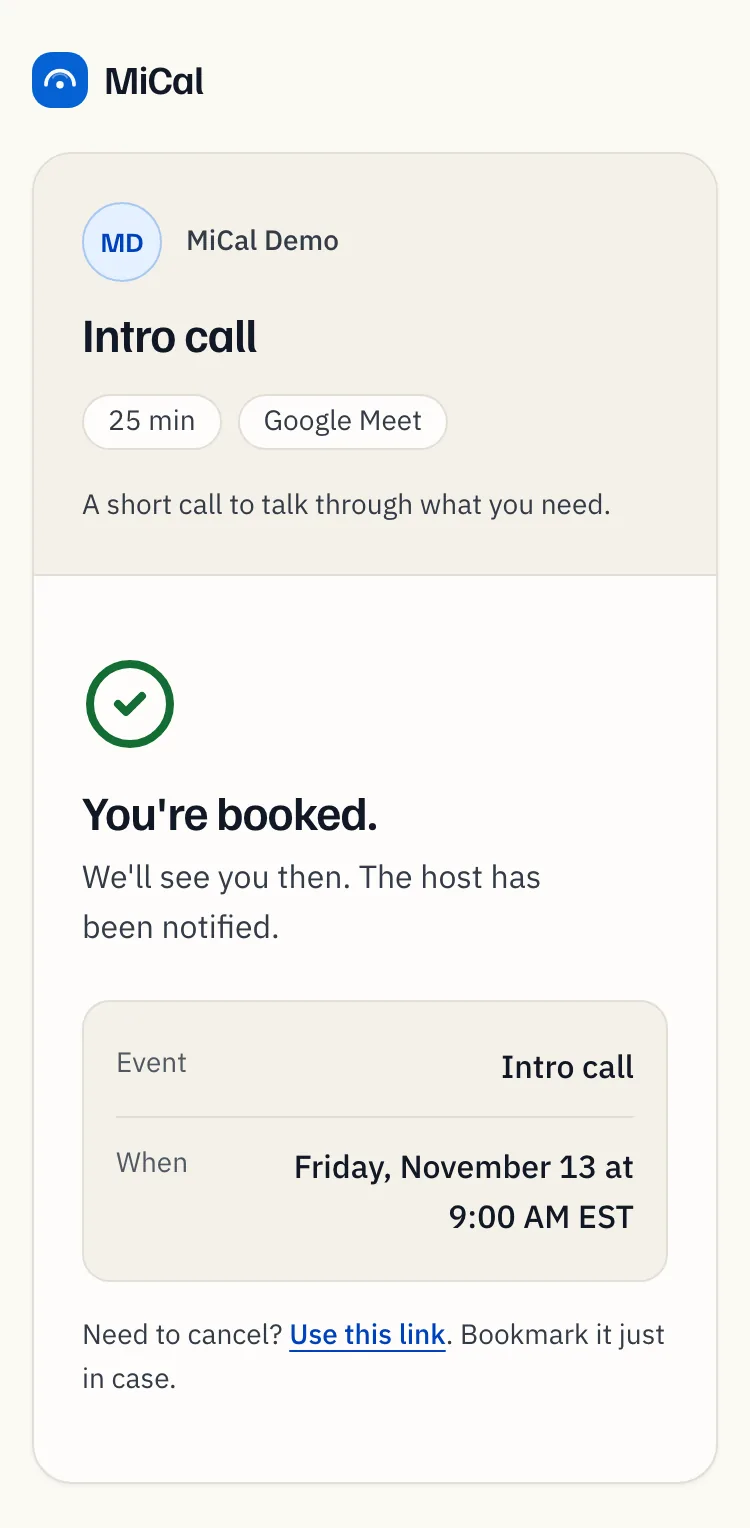
The page says You're booked. and shows the event and time. If you gave an email, a confirmation arrives with a Cancel booking button. Keep it. The page also has a Use this link link for canceling.
Still stuck? Email support@mical.net. Privacy · Terms